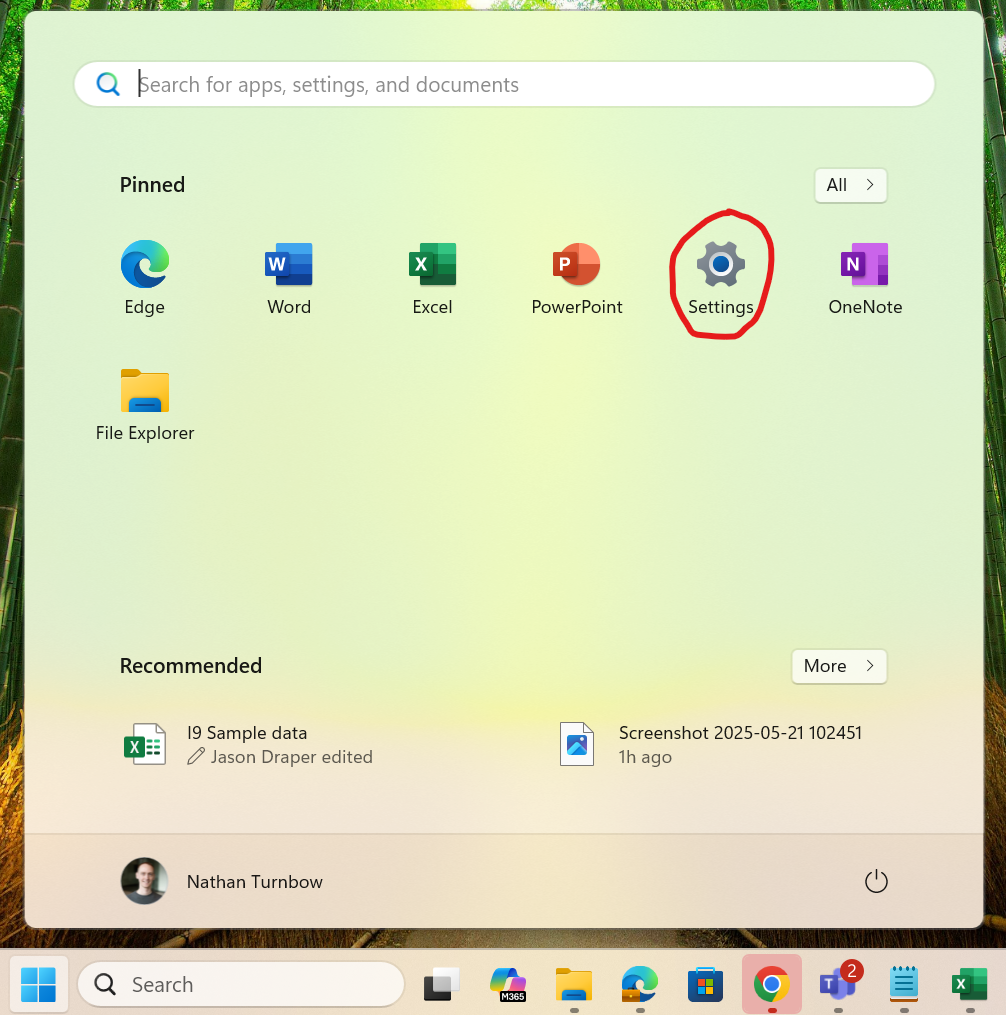
Open up the Windows Settings app
Click on the Windows Start button and type 'Settings', then select the Settings app.
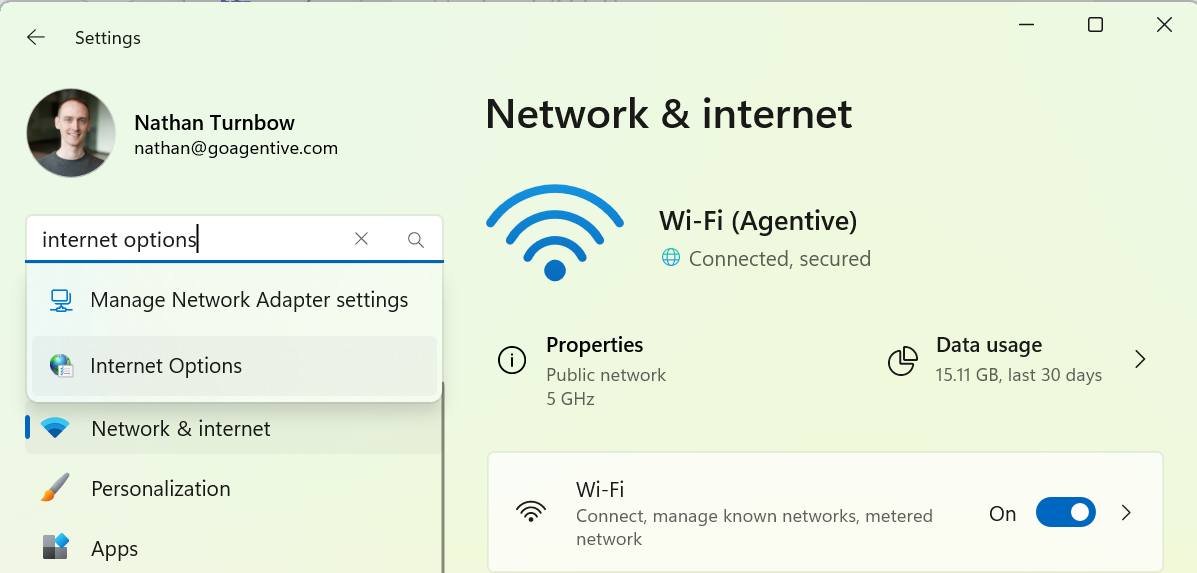
Search for and select 'Internet Options'
In the search box of the Settings app, type 'Internet Options' and select it from the results.
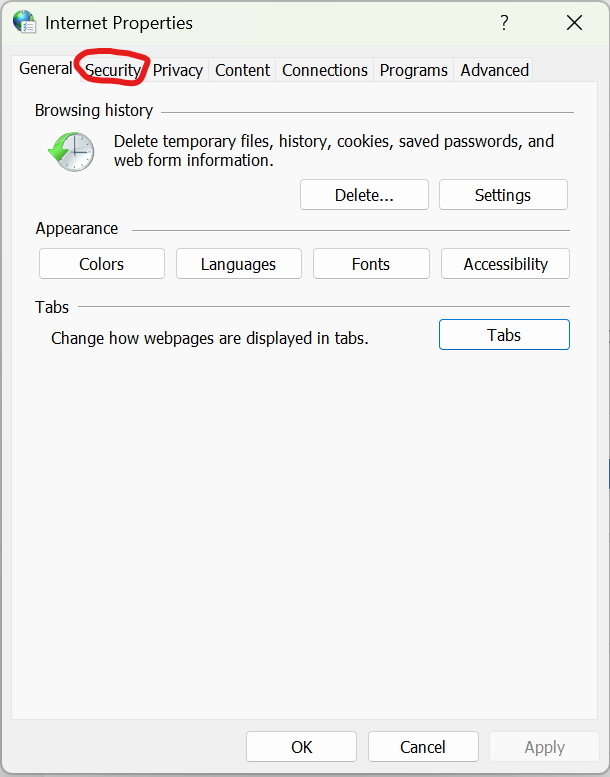
Select the 'Security' tab
In the Internet Properties dialog, click on the 'Security' tab at the top.
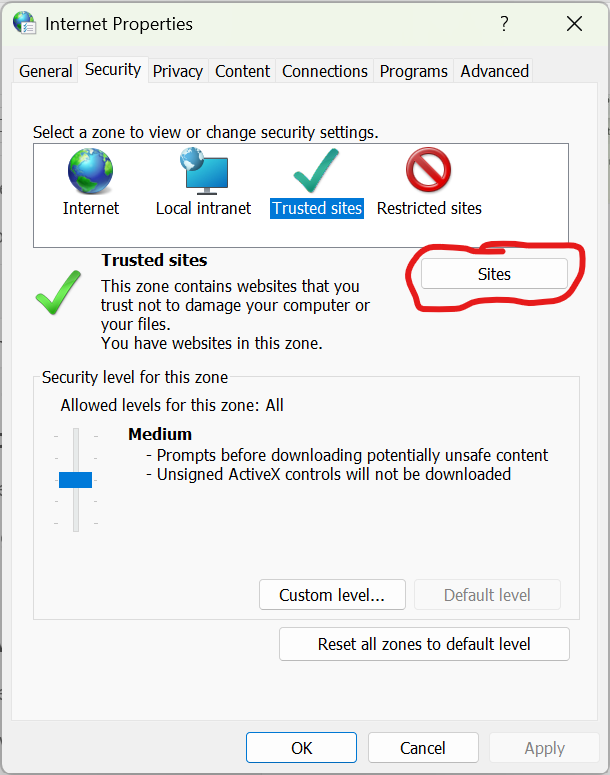
Select 'Trusted Sites' and click the 'Sites' button
In the Security tab, select the 'Trusted Sites' zone, then click the 'Sites' button.
Copy and paste the following URL into the text input box, then click 'Add'
Paste https://*.goagentive.com into the 'Add this website to the zone' field, then click the 'Add' button.
https://*.goagentive.comCopy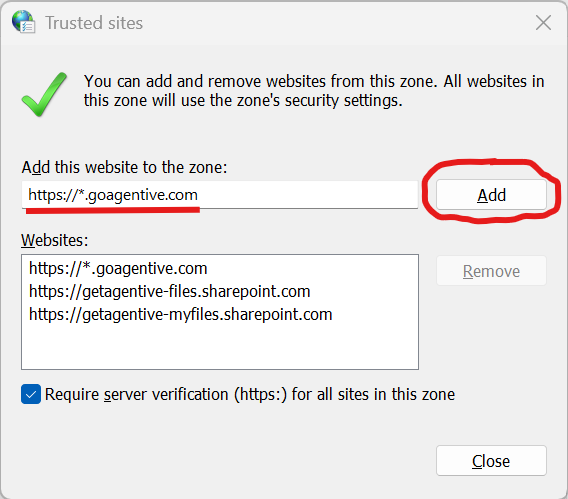
Select your Account Name in the bottom left on Agentive
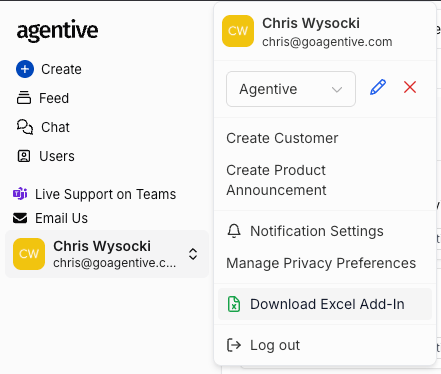
Scroll down to the bottom of the pop-up and click 'Download and Install' below and run setup.exe
After clicking the 'Download and Install' button to download the installer - open Windows File Explorer, navigate to the Downloads folder, and double-click setup.exe to begin the installation.